
如何使用「演示者视图」实现流畅演示-How To Use “Presenter View” For Seamless Presentations
The Presenter View feature in Google Slides transforms the way you deliver presentations, helping you to present with confidence and clarity. It’s a small adjustment that can have a big impact on how smoothly your content flows and how effectively you connect with your audience. With its ability to keep you on track and focused, it ensures that even complex presentations come across as well-structured and engaging.
Google 幻灯片中的“演示者视图”功能彻底改变了您的演示方式,帮助您自信清晰地进行演示。这项小小的调整却能显著提升内容的流畅度,并有效增强您与观众的互动。它能帮助您保持思路清晰、专注,确保即使是复杂的演示文稿也能结构严谨、引人入胜。
One way to stay grounded during these moments is by using tools that support your delivery like Presenter View. When something doesn’t go according to plan, having your notes and next slide preview right in front of you makes it easier to pivot without getting flustered. Instead of scrambling to recover, you can quickly find your place and keep moving. It’s about staying in control, keeping your message clear, and showing your audience that you’re prepared for anything.
在这些时刻保持冷静的一个方法是使用演示辅助工具,例如演示者视图。当出现意外情况时,笔记和下一张幻灯片的预览就在眼前,让你能够轻松调整,避免慌乱。与其手忙脚乱地补救,不如快速找到方向,继续推进。关键在于保持掌控,确保信息清晰,并向观众展现你已做好充分准备应对各种情况。
What Is Presenter View and Why Use It?什么是演示者视图?为什么要使用它?
Section titled “What Is Presenter View and Why Use It?什么是演示者视图?为什么要使用它?”In the middle of a presentation and anyone can go completely blank on their next point. Happens more than we like to admit even to experienced consultants, execs, and trainers. You’re sharing a complex idea, fielding a question, watching the clock… and suddenly, your mental roadmap vanishes.
在演讲过程中,任何人都有可能突然大脑一片空白,想不出下一个要点。这种情况发生的频率远超我们的想象,即使是经验丰富的顾问、高管和培训师也难以避免。你正在阐述一个复杂的想法,回答问题,看着时间……突然间,你的思路就完全消失了。
That’s where Presenter View in Google Slides becomes a game-changer.
这时,Google 幻灯片中的演示者视图就发挥了颠覆性的作用。
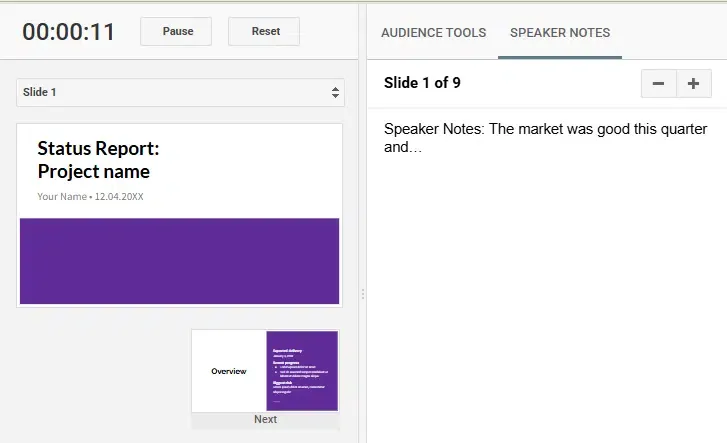
Presenter View in Google Slides allows you to see more than just your slide while presenting. On your screen, you’ll have access to:
Google 幻灯片中的演示者视图允许您在演示时查看幻灯片以外的内容。屏幕上将显示以下内容:
-
- Speaker Notes: A helpful guide for key talking points or reminders, so you don’t miss important details.
演讲者笔记:一份实用指南,记录关键要点或提醒事项,以免错过重要细节。- Next Slide Preview: A sneak peek at what comes next, helping you maintain a smooth transition between ideas.
下一张幻灯片预览:抢先预览接下来的内容,帮助您在不同想法之间保持流畅的过渡。 - Timer: A built-in timer keeps you on track, ensuring that you pace your presentation and stay within time limits.
计时器:内置计时器可帮助您掌控进度,确保您的演示节奏在规定时间内完成。
- Next Slide Preview: A sneak peek at what comes next, helping you maintain a smooth transition between ideas.
- Speaker Notes: A helpful guide for key talking points or reminders, so you don’t miss important details.
This feature is especially useful when presenting complex information, as it allows you to focus on delivering your content without losing sight of your structure and timing.
此功能在呈现复杂信息时尤其有用,因为它能让您专注于传递内容,而不会忽略结构和时间安排。
How to Set Up and Use Presenter View如何设置和使用演示者视图
Section titled “How to Set Up and Use Presenter View如何设置和使用演示者视图”Getting started with Presenter View in Google Slides is simple and can be a game-changer for your delivery. Here’s how to set it up:
在 Google 幻灯片中使用演示者视图非常简单,它可以彻底改变您的演示方式。以下是设置方法:
-
- Open Your Presentation in Google Slides – Begin by opening your presentation. Make sure your speaker notes are prepared, as these will be visible only to you during your presentation.
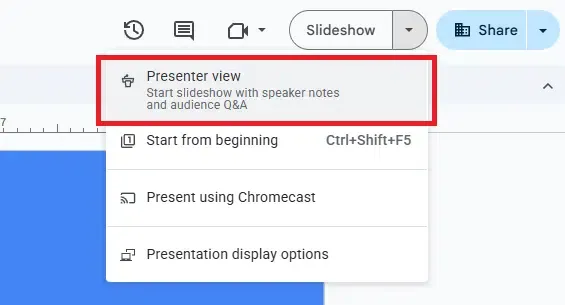
在 Google 幻灯片中打开您的演示文稿 – 首先打开您的演示文稿。请确保您已准备好演讲者备注,因为这些备注在演示过程中只有您自己可见。 - Click on the “Present” Button – In the upper-right corner of Google Slides, click the “Present” button. This will take you into full-screen mode, where your slides will appear.
点击“演示”按钮——在谷歌幻灯片的右上角,点击“演示”按钮。这将进入全屏模式,您的幻灯片将显示在此模式下。 - Select “Presenter View” – Once in full-screen mode, click on the three dots in the bottom left corner of your screen, then select “Open Speaker Notes.” This will open a new window with your Presenter View, where you can see your notes, a preview of the next slide, and a timer.
选择“演示者视图”——进入全屏模式后,点击屏幕左下角的三个点,然后选择“打开演讲者备注”。这将打开一个新窗口,显示演示者视图,您可以在其中查看备注、下一张幻灯片的预览和计时器。
- Open Your Presentation in Google Slides – Begin by opening your presentation. Make sure your speaker notes are prepared, as these will be visible only to you during your presentation.
Now, your audience will see only your current slide, while you have access to all the additional information you need to guide your presentation smoothly.
现在,您的观众只能看到您当前的幻灯片,而您可以访问所有必要的附加信息,以便顺利地进行演示。
Using Presenter View to Enhance Your Delivery使用演示者视图增强您的演示效果
Section titled “Using Presenter View to Enhance Your Delivery使用演示者视图增强您的演示效果”Presenter View is not just about having your notes in front of you—it’s about leveraging those notes to create a more natural, engaging flow. Here’s how to make the most of it:
演示者视图不仅仅是将笔记显示在眼前——它更在于利用这些笔记来创造更自然、更引人入胜的演讲流程。以下是如何充分利用演示者视图的方法:
-
-
- Stay on Message with Speaker Notes: Rather than memorizing every point, use your speaker notes as a prompt for each slide. Write out key bullet points, statistics, or transitions, allowing you to speak naturally while ensuring you don’t overlook any critical information.
利用演讲稿保持主题连贯:与其死记硬背每个要点,不如将演讲稿作为每张幻灯片的提示。写下关键要点、统计数据或过渡语,这样既能让你自然流畅地演讲,又能确保不会遗漏任何重要信息。- Maintain Eye Contact: If presenting in person or virtually, keeping notes brief helps you maintain eye contact with your audience rather than constantly reading from your screen. This makes your delivery feel more conversational and engaging.
保持眼神交流:无论是现场演讲还是线上演讲,保持笔记简洁有助于你与听众保持眼神交流,而不是不停地照着屏幕念。这会让你的演讲更像对话,也更具吸引力。 - Keep an Eye on Time: Use the timer to pace yourself. For example, if you have 15 minutes to cover 10 slides, the timer can help you stay on track, ensuring you don’t spend too long on any one point. This is especially useful when you have a limited time to present or are participating in a Q&A session after the presentation.
注意时间:使用计时器来控制节奏。例如,如果您有 15 分钟的时间讲解 10 张幻灯片,计时器可以帮助您保持进度,确保您不会在任何一个要点上花费太多时间。这在您演讲时间有限或演讲后需要参加问答环节时尤其有用。
- Maintain Eye Contact: If presenting in person or virtually, keeping notes brief helps you maintain eye contact with your audience rather than constantly reading from your screen. This makes your delivery feel more conversational and engaging.
- Stay on Message with Speaker Notes: Rather than memorizing every point, use your speaker notes as a prompt for each slide. Write out key bullet points, statistics, or transitions, allowing you to speak naturally while ensuring you don’t overlook any critical information.
-
Practical Tips for Using Presenter View in Different Settings在不同设置下使用演示者视图的实用技巧
Section titled “Practical Tips for Using Presenter View in Different Settings在不同设置下使用演示者视图的实用技巧”Presenter View can be particularly useful in both in-person and virtual settings. Here’s how you can adapt it to each situation:
演示者视图在现场和虚拟环境中都非常有用。以下是如何根据不同情况调整演示者视图的方法:
-
-
- In-Person Presentations:现场演示:
When presenting live, connect your laptop to a projector or external monitor. Your audience will see the full-screen slide view on the big screen, while you can keep the Presenter View open on your laptop. This setup allows you to keep track of your notes without turning away from your audience, making for a more polished presentation.
进行现场演示时,请将笔记本电脑连接到投影仪或外接显示器。这样,观众可以在大屏幕上看到全屏幻灯片,而您可以保持笔记本电脑上的演示者视图打开。这种设置让您无需将目光从观众身上移开即可记录笔记,从而使演示更加流畅自然。- Remote Presentations:远程演示:
If you’re presenting through a platform like Zoom or Microsoft Teams, share only the window that displays your slides, not the entire screen. This way, the audience sees your slide content while you keep the Presenter View in a separate window. It’s a great way to stay organized while maintaining a professional appearance during virtual meetings or webinars.
如果您使用 Zoom 或 Microsoft Teams 等平台进行演示,请仅共享显示幻灯片的窗口,而不是整个屏幕。这样,观众可以看到幻灯片内容,而您可以将演示者视图保留在单独的窗口中。这是一种在虚拟会议或网络研讨会期间保持条理清晰并展现专业形象的好方法。 - Hybrid Meetings:混合式会议:
In hybrid settings, where some of your audience is in the room and others are attending virtually, Presenter View can keep you grounded. You can keep track of both groups while focusing on delivering your message clearly.
在混合式教学环境中,部分听众在现场,部分听众在线参与,演示者视图功能可以帮助您掌控全局。您可以同时关注两组听众,并专注于清晰地传达信息。
- Remote Presentations:远程演示:
- In-Person Presentations:现场演示:
-
If you’re looking to sharpen your presentation skills even further, consider diving into specialized training that focuses on delivering presentations that captivate and persuade. At Analyst Academy, our Presentation Storytelling course teach professionals how to leverage storytelling. Whether you’re working with Google Slides, PowerPoint, or another platform, our courses provide the skills you need to excel in any presentation setting. Explore our training options and take your presentation game to the next level.
如果您想进一步提升演讲技巧,不妨考虑参加专门的培训,学习如何打造引人入胜、极具说服力的演讲。在分析师学院,我们的“演讲故事讲述”课程旨在帮助专业人士掌握讲故事的技巧。无论您使用的是 Google Slides、PowerPoint 还是其他平台,我们的课程都能为您提供在任何演讲场合脱颖而出所需的技能。探索我们的培训选项,让您的演讲水平更上一层楼。